Testing Facebook Pixel and CAPI Events in PrestaShop
Use Chrome's Meta Pixel Helper extension together with Pixel Plus's built-in CAPI logging to confirm that both browser and server-side events are firing and deduplicating correctly in your PrestaShop store.
Introduction
Testing your Facebook Pixel and Conversion API (CAPI) events is crucial to ensure proper event tracking and deduplication in your PrestaShop store. This guide will walk you through two methods:
- Using Google Chrome's Pixel Helper Extension to check browser events.
- Using PrestaShop's Logging Feature inside the CAPI section of the Pixel Plus module to record server-side events.
By following this guide, you can confirm that:
✅ Events are firing correctly in the browser.
✅ Server-side events are being logged and processed.
✅ Deduplication is working as expected.
Step 1: Install the Facebook Pixel Helper Extension
To test browser events, you need to install Meta Pixel Helper, a Google Chrome extension.
Installation Instructions:
- Open Google Chrome.
- Visit the Meta Pixel Helper extension.
- Click "Add to Chrome", then "Add Extension".
- Once installed, you'll see the Pixel Helper icon in the Chrome toolbar.
💡 Tip: If you don't see the Pixel Helper icon, click on the extensions menu (puzzle icon) and pin it.
Step 2: Enable CAPI Event Logging in PrestaShop
To verify server-side events (CAPI), use the logging feature in the Pixel Plus module.
How to Enable CAPI Logging:
- Go to PrestaShop Back Office.
- Navigate to Modules > Pixel Plus > Conversion API Settings.
- Find the option "Log API Events"
- Set it to "Yes".
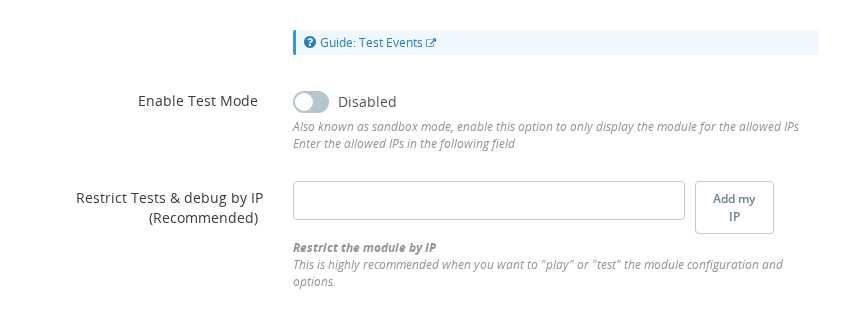
- (Recommended) Restrict Logging to Your IP:
- Locate the "Restrict Tests & debug by IP" box.
- Click "Add My IP" to automatically add your IP address.
- This ensures logs are only saved for your tests, preventing unnecessary data collection.
- Save the configuration.
Additional Logging Features:
- View Logged Events in PrestaShop:
Once enabled, events will be stored in PrestaShop's log section, helping you analyze what is sent to Facebook. - Key Fields to Check:
events_received→ Indicates how many events Facebook has successfully received.fbtrace_id→ A unique tracking token from Facebook. This confirms Facebook processed the event.
🛑 If these fields are missing from the logs, Facebook is not receiving your events! Double-check your CAPI settings.
Step 3: Disable Ad Blockers for Your Store Domain
Ad blocking extensions (uBlock Origin, Adblock Plus, Ghostery, Brave Shields, etc.) intercept the Meta Pixel script (fbevents.js) and block all outgoing requests to connect.facebook.net. If an ad blocker is active, Pixel Helper will show nothing — not because your pixel is broken, but because the script was never allowed to run.
You do not need to disable your ad blocker entirely. Every major ad blocker lets you add per-domain exceptions:
- uBlock Origin: click the extension icon → click the blue power button to disable on the current site → click the refresh icon
- Adblock Plus: click the extension icon → click "Disable on [your domain]"
- Ghostery: click the extension icon → click the pause icon to trust the site
- Brave Shields: click the Shields icon in the address bar → toggle Shields off for the site
Add your store's domain as an exception. This keeps your general ad blocking active on other sites while allowing your own pixel testing to work correctly. Once testing is complete you can re-enable blocking for your store if you wish.
Step 4: Start Generating Events
Now that the Pixel Helper extension is installed, CAPI logging is enabled, and ad blockers are paused for your store domain, follow these steps to test your browser-based Pixel events.
- Open your PrestaShop store in Chrome.
- Click on the Pixel Helper icon in the toolbar.
- The Pixel Helper will display all the Facebook Pixel events fired on the page.
- Click on each event to check:
- Event Name (e.g.,
PageView,AddToCart,Purchase). - Pixel ID (Should match the one configured in Pixel Plus module).
- Warnings or errors (if any).
- Event Name (e.g.,
📌 Expand Event Details for More Insights
Click the black triangle (▸) next to an event to expand its details. This reveals:
- Event ID (used for deduplication with CAPI events).
- User data parameters (e.g., email, phone number, hashed for privacy).
- Custom parameters (e.g., product ID, price).
- Diagnostics (warnings about missing or misconfigured parameters).
⚠️ Common Issue: If Pixel Helper shows no events, ensure that:
- The Facebook Pixel ID is correctly configured.
- No ad blockers are blocking the script.
- The Pixel is firing on the page.
- The module is not being blocked by a consent manager module / system
🛑 Troubleshooting Tip:
If events disappear after a short time, try triggering an event, switching to another tab, and then rechecking the Pixel Helper log.
Step 5: Check If Facebook Received the Event (CAPI)
Facebook provides confirmation parameters that indicate if the event was received.
📌 Important Fields to Verify in the PrestaShop Logs
events_received→ Indicates how many events Facebook received.fbtrace_id→ A unique tracking token from Facebook that confirms event processing.
Step 6: Compare Browser and Server Events for Deduplication
Now that Pixel Helper (browser) and CAPI logs (server) are active, compare the results.
✅ What to Look For:
- The same event (e.g.,
Purchase) should appear in both:- Pixel Helper (browser)
- CAPI logs (server)
This will lead to event deduplication which means only the most meaningfull event will be kept by Facebook, for that to happen it's necessary that:
- The Event ID in Pixel Helper and CAPI logs should match.
How to Check Deduplication:
- Open Pixel Helper and expand the event details.
- Look for the Event ID.
- Open PrestaShop's CAPI logs and find the same event.
- Compare the Event ID in both places.
- If they match, Facebook will deduplicate the event and optimize based on the most reliable source.
⚠️ Pixel Helper May Hide Events Over Time!
If the event disappears:
- Trigger the event again (e.g., add a product to cart).
- Switch to another tab.
- Return to Pixel Helper to check if the event logs are still available.
Conclusion
By following this guide, you can test and debug your Facebook Pixel and Conversion API events in PrestaShop.
What You Achieved:
✔ Verified that browser events fire using Pixel Helper.
✔ Enabled CAPI event logging and restricted it to your IP.
✔ Compared browser & server events to confirm deduplication.
🚀 Next Step: If you still experience issues, check the Facebook Debugging Tools or review the CAPI & Pixel configurations inside the Pixel Plus module.
For more details, visit the official Facebook Event Debugging Guide.
What is the Meta Pixel Helper extension used for?
The Meta Pixel Helper is a Chrome extension that shows all browser Pixel events firing on the current page in real time. It displays the event name, Pixel ID, parameters, event ID, and any warnings or errors.
Why should I restrict CAPI logging to my IP address?
Restricting logging to your IP ensures that only your test actions are recorded in the PrestaShop log. Without this restriction, events from real customers would also be logged, generating unnecessary data and making it harder to isolate your test results.
What does it mean when events_received is missing from the CAPI log?
If events_received is absent from the log entry, Facebook did not confirm receiving the event. This usually means the CAPI request failed to deliver. Check your CAPI Access Token is valid and that your server can reach the Facebook API endpoint.
How do I confirm that browser and server events are being deduplicated?
Check the event_id field in the Pixel Helper for the browser event and in the PrestaShop CAPI log for the server event. If both show the same event_id for the same action, Facebook will deduplicate them and count only one conversion.
What should I do if Pixel Helper shows no events on my store?
The most common cause is an active ad blocker. Extensions like uBlock Origin, Adblock Plus, Ghostery, and Brave Shields intercept the Meta Pixel script before it runs. You do not need to disable the extension entirely — add your store's domain as a per-site exception instead. Also check that the Pixel ID is correctly configured in Pixel Plus and that your cookie consent module has not blocked the pixel from loading.