Facebook Pixel ID Configuration for PrestaShop
Connecting your Facebook Pixel ID to Pixel Plus is the first step to tracking customer activity in your PrestaShop store. This guide covers how to find your Pixel ID, add it to the module, and configure advanced options like multiple pixels and event individualization.

Introduction
The Facebook Pixel is a powerful tool for tracking user interactions and optimizing ad campaigns on Facebook. If you are using the Pixel Plus module for PrestaShop, this guide will help you correctly configure your Facebook Pixel ID to ensure precise event tracking and avoid conflicts with other pixels on your site.
How to Obtain Your Facebook Pixel ID
To integrate the Facebook Pixel into your PrestaShop store, you first need to retrieve your Pixel ID from Facebook. Follow these steps:
- Go to Facebook Business Manager: Log in to Facebook Business Manager.
- Open Events Manager: Navigate to the "Events Manager" section.
- Select Your Pixel: Under the "Data Sources" tab, select "Pixels."
- Copy Your Pixel ID: The Pixel ID is displayed at the top of the settings panel. Copy this number and paste it into the "Pixel Identifier" field in the Pixel Plus module for PrestaShop.
Adding Multiple Facebook Pixel IDs
The Pixel Plus module for PrestaShop allows you to add multiple Facebook Pixel IDs. To do this:
- Enter multiple Pixel IDs in the "Pixel Identifier" field, separating them with a comma (
,). - Example:
1234567890,0987654321 - While Facebook does not recommend using multiple pixels, this feature can be useful for advanced tracking setups.
Individualizing Events
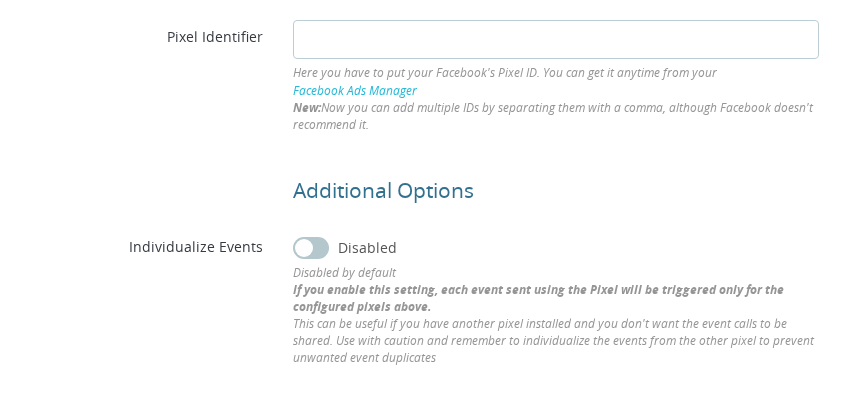
The "Individualize Events" option allows you to control which pixel receives the event data. By default, this setting is disabled. When enabled:
- Each event is triggered only for the configured pixels in the "Pixel Identifier" field.
- This is particularly useful when multiple pixels are installed on your PrestaShop site, and some belong to third-party tools or external advertising accounts.
- If another Facebook Pixel is added outside the Pixel Plus module, enabling this option helps prevent duplicate event tracking.
Important Considerations:
- If you enable "Individualize Events," ensure you configure events separately for other pixels installed outside the Pixel Plus module for PrestaShop.
- Failing to individualize events for external pixels may result in incorrect tracking data and duplicated conversions.
- Ensure also that third party tools are sending the events by individualizing them too, otherwise once the Pixel is loaded, the third party tools can also send events to the loaded pixels.
For more information, visit the official Facebook Pixel Documentation.
Where do I find my Facebook Pixel ID?
Log in to Facebook Business Manager, open Events Manager, and go to Data Sources. Select the Pixels tab. Your Pixel ID is the number shown at the top of the settings panel.
Can I add more than one Pixel ID in Pixel Plus?
Yes. Enter multiple Pixel IDs in the Pixel Identifier field, separated by a comma. For example: 1234567890,0987654321. Note that Facebook does not officially recommend using multiple pixels on the same site.
What does the Individualize Events option do?
When enabled, each event is sent only to the specific pixels listed in the Pixel Identifier field. This prevents other pixels installed on your site (from third-party tools or ad agencies) from receiving duplicate events from Pixel Plus.
Should I enable Individualize Events if I only use one pixel?
It is not required when only one pixel is active. Enable it if you have additional pixels installed on your site from other sources, such as Google Tag Manager or another marketing module.
What happens if I add an incorrect Pixel ID?
Events will be sent to the wrong pixel or will fail silently. Always double-check the Pixel ID in Events Manager before saving. If tracking stops working after a change, verify the ID is correct and the pixel is active.