Troubleshooting
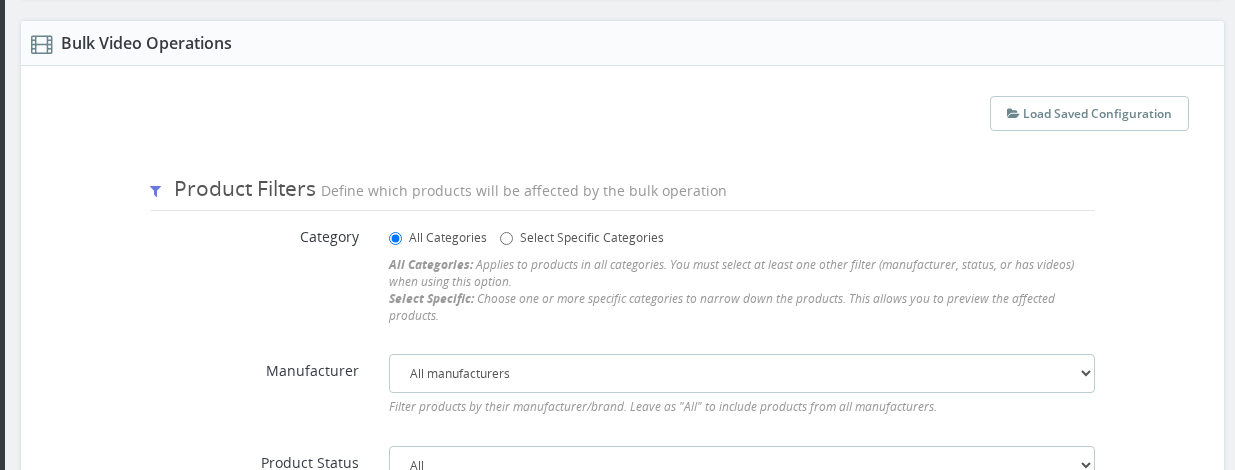
This guide covers the most common issues you may encounter when using Mass Video Management — from filters returning no results to execution errors and videos not appearing on the frontend.
Common Problems
Preview Shows No Products
Problem: Preview button returns "No products found".
Causes:
- Filters too restrictive
- Selected category is empty
- No products match your filter combination
Solutions:
- Remove some filters and try again
- Check if selected category has products
- Change "Has Videos" to "All"
- Verify manufacturer has products in selected category
Preview Shows Wrong Products
Problem: Preview includes unexpected products.
Causes:
- Multiple categories selected (products in ANY category are included)
- Filter logic misunderstood (uses AND logic)
- Active status not set correctly
Solutions:
- Add filters one by one while previewing to see what each does
- Check that all filters are set as intended
- Remember: products must match ALL filters
Can't Execute Operation
Problem: Execute button doesn't work or shows error.
Causes:
- Haven't previewed yet (preview is mandatory)
- No products in preview
- Missing required fields (e.g., video URL for Add action)
Solutions:
- Click "Preview Affected Products" first
- Verify preview shows products
- Check all required fields are filled
- For Add action, ensure video URL is provided
Invalid Video URL Error
Problem: "Invalid video URL" error when adding videos.
Causes:
- URL format incorrect
- Video provider not configured in module settings
- URL not from a supported platform
Solutions:
- Verify URL format (check the examples in Bulk Actions guide)
- Test URL in a browser first
- For non-YouTube/Vimeo videos, configure provider in module settings
- Ensure URL is complete and valid
Operation Times Out
Problem: Operation takes too long or times out.
Causes:
- Too many products (200+)
- Server resources limited
- Large operations during peak traffic
Solutions:
- Split operation into smaller batches (50-100 products at a time)
- Run operations during low-traffic hours
- Filter more specifically to reduce product count
Videos Not Appearing on Frontend
Problem: Videos added successfully but don't show on product pages.
Causes:
- Cache not cleared
- Video restricted to registered users (and you're not logged in)
- Template doesn't support product videos
- Video provider settings incorrect
Solutions:
- Clear PrestaShop cache (Performance settings)
- Clear browser cache
- Check if video is set to "Registered Only"
- Verify your theme supports product videos
- Test with a different product
Can't Remove Videos
Problem: Remove operation doesn't work.
Causes:
- Filter shows no products with videos
- "Has Videos" filter set to "Without Videos"
Solutions:
- Set "Has Videos" to "With Videos"
- Preview to verify products have videos
- Check if products actually have videos attached
Changes Applied to Wrong Shop
Problem: Videos added/updated in wrong shop context.
Causes:
- Working in multi-shop environment
- Wrong shop context selected
Solutions:
- Check shop selector before executing
- Switch to correct shop context
- Preview again to verify
- In multi-shop, videos are shop-specific
Error Messages
"At least one filter required"
Meaning: You must set at least one filter.
Solution: Select a category, manufacturer, active status, or Has Videos filter.
"Video URL is required"
Meaning: Add action needs a video URL.
Solution: Fill in the Video URL field with a valid URL.
"No products match your filters"
Meaning: Your filter combination returns no products.
Solution: Broaden your filters or check if category has products.
"Provider not configured"
Meaning: Video platform isn't set up in module settings.
Solution: Go to module configuration and add the video provider.
Best Practices
To Avoid Problems:
- Always preview before executing
- Test with 2-3 products first when learning
- Check filters carefully for Remove operations
- Work in batches for large operations (50-100 products)
- Verify shop context in multi-shop environments
- Clear cache after operations if videos don't appear
- Document operations for future reference
- Test video URLs in browser before adding
Still Having Issues?
If you're still experiencing problems:
- Check module configuration is correct
- Verify you have proper permissions
- Check server error logs for detailed information
- Test with a single product manually to isolate the issue
- Contact support with specific error messages
FAQ
No. Operations are permanent, especially Remove. Always preview carefully.
Technically 500+, but recommended to stay under 200 per operation for better performance and control.
The operation may be partially complete. Check products manually and re-run if needed with adjusted filters.
By design, only ONE manufacturer at a time. Run separate operations for each manufacturer.
Yes. Operations apply to all languages, though product names in preview show in the selected language.
Why do my videos not appear on the storefront after a successful bulk operation?
The most common cause is that the PrestaShop cache has not been cleared. Go to Advanced Parameters, then Performance, and click Clear Cache. Also clear your browser cache. If videos are set to Registered Only, you must be logged in to see them.
Why does the execute button not work?
You must click Preview Affected Products before Execute becomes available. If preview shows no products, adjust your filters. Also check that all required fields are filled in, such as the video URL for an Add operation.
I got an Invalid video URL error when using Add. What should I do?
First verify the URL is correct by opening it in a browser. For platforms other than YouTube and Vimeo, check that the provider is configured in the module settings. Make sure the URL is complete and copied directly from the video platform.
My operation timed out. How do I handle large catalogs?
Split the operation into smaller batches of 50 to 100 products by narrowing your filters, and run the operations during low-traffic hours to reduce server load.
Changes were applied to the wrong shop in a multi-shop setup. How do I prevent this?
Before running a bulk operation, check the shop context selector in your back office to confirm you are working in the correct shop. Operations apply only to the currently selected shop context.
Check the other guides for detailed information about filters, actions, and execution.
Last updated: 2025-12-16