Bulk Actions
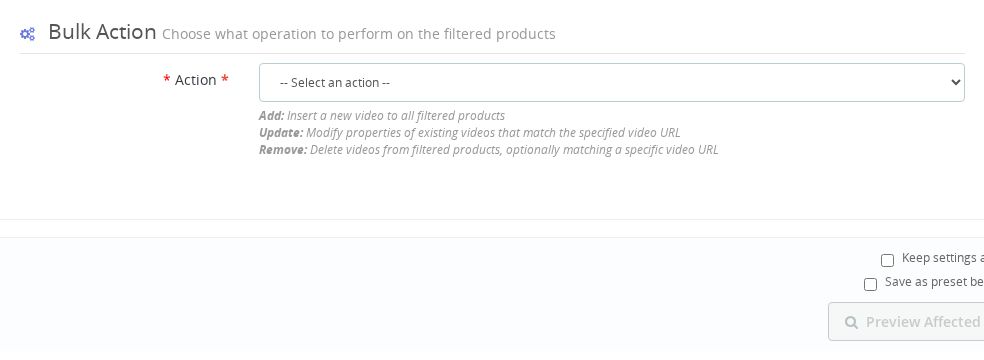
Once you have filtered the products to target, choose an action — Add, Update, or Remove — to apply across all matching products at once.
📋 Overview
Choose what action to perform on your filtered products:
- Add - Add new videos
- Update - Modify existing videos
- Remove - Delete videos
Add Video
Adds a new video to all filtered products.
Required: Video URL
Enter the complete URL of your video.
Supported platforms:
- YouTube
- Vimeo
- Direct MP4
- Custom iFrame
https://www.youtube.com/watch?v=VIDEO_ID
https://youtu.be/VIDEO_ID
https://vimeo.com/VIDEO_ID
https://example.com/video.mp4
Any valid iframe embed URL
For non-YouTube/Vimeo videos, configure the provider first in module settings.
Optional Fields
Video Title A name for the video. Leave empty if not needed.
Position Where to add the video in the product's video list:
| Value | Behavior |
|---|---|
| 0 or empty | Add as first video |
| -1 | Add as last video |
| 1, 2, 3... | Add at exact position |
Registered Only Check to restrict video visibility to logged-in customers only.
Example
Filters: Category: Power Tools
Action: Add Video
  URL: https://youtube.com/watch?v=demo123
  Title: Product Demo 2024
  Position: 0 (first)
  Registered Only: No

Result: Demo video added as first video to all Power Tools products
Update Videos
Updates existing videos on filtered products.
This affects ALL videos on each filtered product. Any field you fill will be updated.
Optional Fields
New Video Title Replace the current title with a new one.
New Position
| Value | Result |
|---|---|
| 0 | Move to first position |
| -1 | Move to last position |
| Specific number | Move to that position |
Registered Only Change access restriction:
- Check → videos become registered-only
- Uncheck → videos become public
- Leave unchanged → keep current setting
Example
Filters: Category: Clearance, Has Videos: With Videos
Action: Update Videos
  Title: (empty - keep current)
  Position: -1 (move to last)
  Registered Only: No (make public)

Result: All videos moved to last position and made public
🗑️ Remove Videos
Permanently removes videos from filtered products.
This operation:
- CANNOT be undone
- Permanently deletes video database entries
- Shows extra confirmation before executing
No Configuration Needed
Remove has no fields - it simply deletes all videos from filtered products.
Best practices:
- Double-check your filters
- Always preview first
- Test with small product sets
- Consider exporting data as backup
Example
Filters: Active: Inactive Only, Has Videos: With Videos
Action: Remove Videos

Result: All videos permanently removed from inactive products
🎯 Choosing the Right Action
Quick reference guide for selecting the appropriate action:
| Goal | Action | Key Settings |
|---|---|---|
| Add promo to collection | Add | URL + Position 0 |
| Move videos to end | Update | Position -1 |
| Make videos exclusive | Update | Registered Only ☑ |
| Clean up old content | Remove | (none) |
| Add to products without videos | Add | Filter: Without Videos |
Quick Tips
For Add:
- Test the URL in a browser first
- Use position 0 for prominence, -1 to preserve order
- Verify provider is configured
For Update:
- Only fill fields you want to change
- Remember it affects ALL videos on each product
- Use preview to verify scope
For Remove:
- This is permanent - be very careful
- Always double-check filters
- Start with small test sets
Action Comparison
| Feature | Add | Update | Remove |
|---|---|---|---|
| Affects existing videos | No | Yes | Yes |
| Creates new videos | Yes | No | No |
| Reversible | Manual | Manual | No |
| Requires URL | Yes | No | No |
| Risk level | Low | Medium | High |
If I use Update Videos, does it affect all videos on a product or only specific ones?
Update Videos affects ALL videos on each filtered product. Any field you fill in will be updated across every video on those products. Leave a field empty to keep its current value unchanged.
What position value should I use to add a video at the very end of the list?
Use position -1 to place the video at the last position. Use 0 or leave the field empty to place it at the first position.
Can I restrict a video to logged-in customers only using bulk actions?
Yes. When using the Add or Update action, check the Registered Only field. This makes the video visible only to customers who are logged in to their account.
What video platforms can I use with the Add bulk action?
You can use any provider configured in the module settings. YouTube and Vimeo work out of the box. For other platforms such as Dailymotion or custom self-hosted MP4 files, configure the provider in the module settings first.
Is it possible to undo a bulk Remove operation?
No. The Remove action permanently deletes video entries from the database and cannot be undone. Always preview carefully and consider exporting your data before running a Remove operation.
Now you understand the actions. Learn how to preview and execute them safely.
Last updated: 2025-12-16