Filtering Products
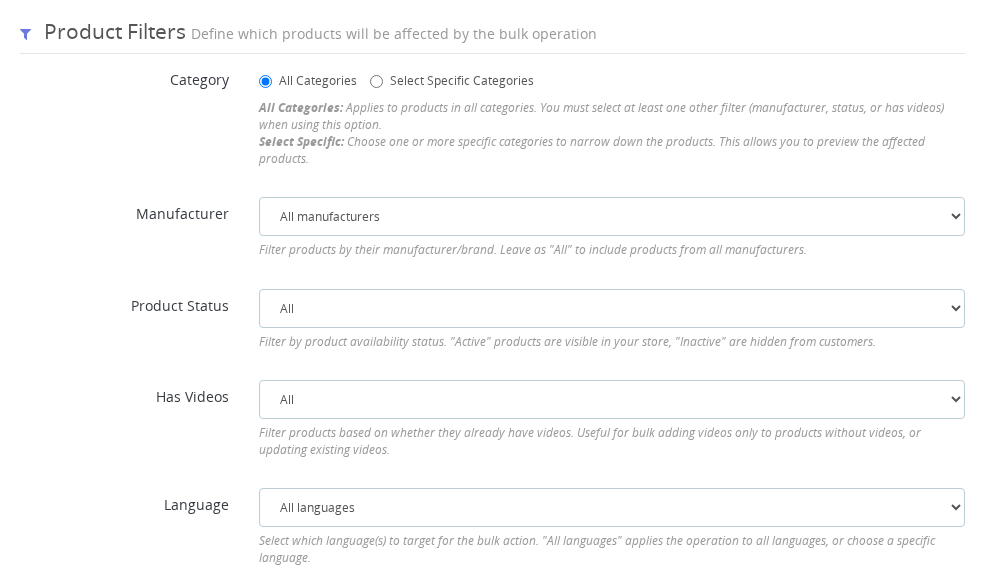
Filters determine which products are affected by a bulk operation. You can combine category, manufacturer, active status, and video presence filters to target exactly the products you need.
What are Filters?
Filters let you choose which products to affect. You can combine multiple filters to target exactly the products you need.
All filters work together with AND logic - products must match ALL selected filters.
Available Filters
Category
Select one or more categories from the tree.
- Check boxes next to categories you want
- Products in ANY selected category will be included
- Can select multiple categories
Example: Select "Summer Collection" → affects all products in that category
Manufacturer
Select a manufacturer/brand from the dropdown.
- Only ONE manufacturer can be selected
- Leave blank for all manufacturers
Example: Select "Nike" → only Nike products affected
Active Status
Filter by product status.
| Option | What It Does |
|---|---|
| All | Both active and inactive products |
| Active Only | Only products visible in your store |
| Inactive Only | Only disabled products |
Example: "Active Only" → only changes products customers can see
Has Videos
Filter by whether products have videos.
| Option | What It Does | Best For |
|---|---|---|
| All | All products regardless | General operations |
| With Videos | Only products with videos | Updates, removals |
| Without Videos | Only products with no videos | Adding first videos |
Example: "Without Videos" + "Add Video" → adds videos only where missing
- Use "Without Videos" when adding to avoid duplicates
- Use "With Videos" when updating or removing
Filter Combinations
Good combinations:
Add promo to collection:
  Category: Summer 2024
  Active: Active Only
  Has Videos: Without Videos (avoids duplicates)

Update manufacturer videos:
  Manufacturer: Nike
  Has Videos: With Videos (only existing)

Clean up inactive products:
  Active: Inactive Only
  Has Videos: With Videos
Language selection only affects the preview display. The operations themselves apply to all languages.
Important Rules
You must set at least one filter. This prevents accidental changes to your entire catalog.
Valid:
- ✅ At least one category selected
- ✅ A manufacturer selected
- ✅ Active status not "All"
- ✅ Has Videos not "All"
Invalid:
- ❌ All filters left at default
Tips
1. Use Preview Always preview before executing to verify the right products are selected.
2. Start Broad Begin with one filter, preview, then add more filters to narrow down.
3. Test First When learning, test with 2-3 products in a test category before scaling up.
Why this works:
- Targets only discontinued products
- Cleans up unnecessary video data
- Doesn't affect active products
Common Issues
No products found
Reasons:
- Filters too restrictive
- Category empty
- All products already have videos (with "Without Videos" filter)
Solution: Remove some filters and try again
Unexpected products in preview
Check:
- Multiple categories selected? (products in ANY category included)
- Correct manufacturer?
- Correct active status?
Tip: Add filters one by one while previewing
Can't select multiple manufacturers
By design, only ONE manufacturer at a time.
Solution: Run separate operations for each manufacturer
Quick Reference
| Goal | Filters |
|---|---|
| Add video to new products | Category + Without Videos + Active Only |
| Update brand videos | Manufacturer + With Videos |
| Remove from inactive | Active: Inactive + With Videos |
| Fill missing videos | Category + Without Videos + Active Only |
Do filters use AND or OR logic when I select multiple criteria?
All filters use AND logic. A product must match every filter you have set to be included. For example, if you select a category and set Has Videos to Without Videos, only products that are in that category AND have no videos will be affected.
Can I select multiple manufacturers at the same time?
No. The manufacturer filter allows only one selection at a time. If you need to apply the same operation to products from several manufacturers, run separate operations for each one.
What is the Has Videos filter used for?
The Has Videos filter lets you limit the operation to products that already have videos (useful for Update and Remove), or to products that have no videos yet (useful when adding a first video without creating duplicates).
Why does the preview show no products even though I have products in that category?
The most common reasons are that the filter combination is too restrictive, the selected category has no products, or all products in the category already have videos when you are filtering for Without Videos. Try removing one filter at a time to identify which one is too narrow.
Now that you know how to filter products, learn about the actions you can perform.
Last updated: 2025-12-16