Message Templates: Write Your Own Delivery Date Text
Every store has a slightly different voice. Some want "Arrives Wednesday, April 23." Others prefer "Order in the next 2h 15m and get it tomorrow." Message Templates give you complete control over the wording, structure, and logic of the delivery date widget on your product pages.
Instead of choosing a pre-built display style, you write the message yourself — then use {variable} placeholders where you want real dates, times, or carrier information to appear. At render time, the module replaces each placeholder with the actual value for that customer, that carrier, and that moment.
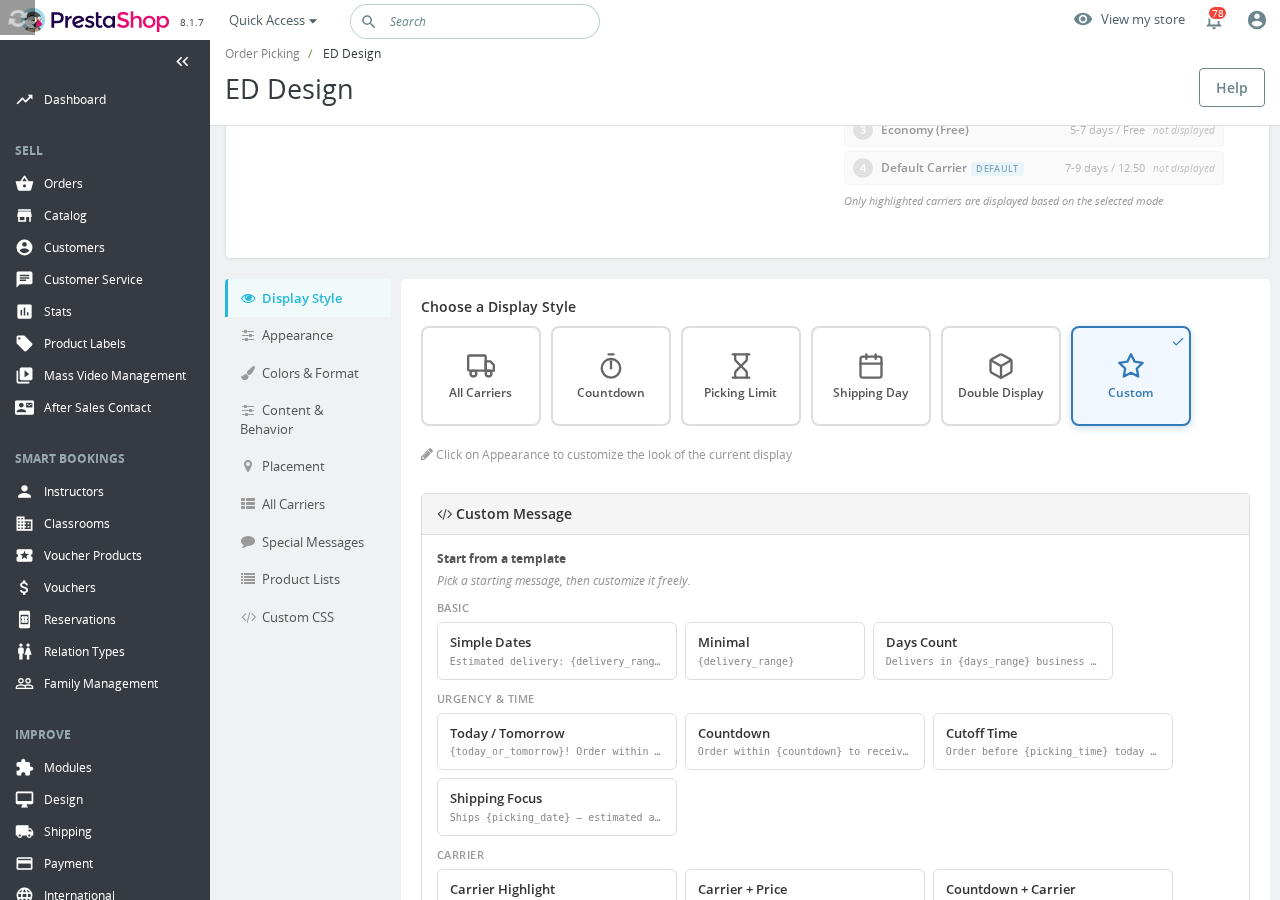
Step 1: Switch to Custom display mode
Message Templates only appear when the display mode is set to Custom.
Go to Back Office → Modules → Estimated Delivery → Design → Display Style and select Custom. Once you do, a Custom Message editor will appear below the display style selector.
Step 2: Pick a template as your starting point
Writing a message from scratch is optional — the module includes a gallery of ready-made templates organized by category:
- Basic — Simple Dates, Minimal, Days Count
- Urgency & Time — Today / Tomorrow, Countdown, Cutoff Time, Shipping Focus
- Carrier — Carrier Highlight, Carrier + Price, Countdown + Carrier
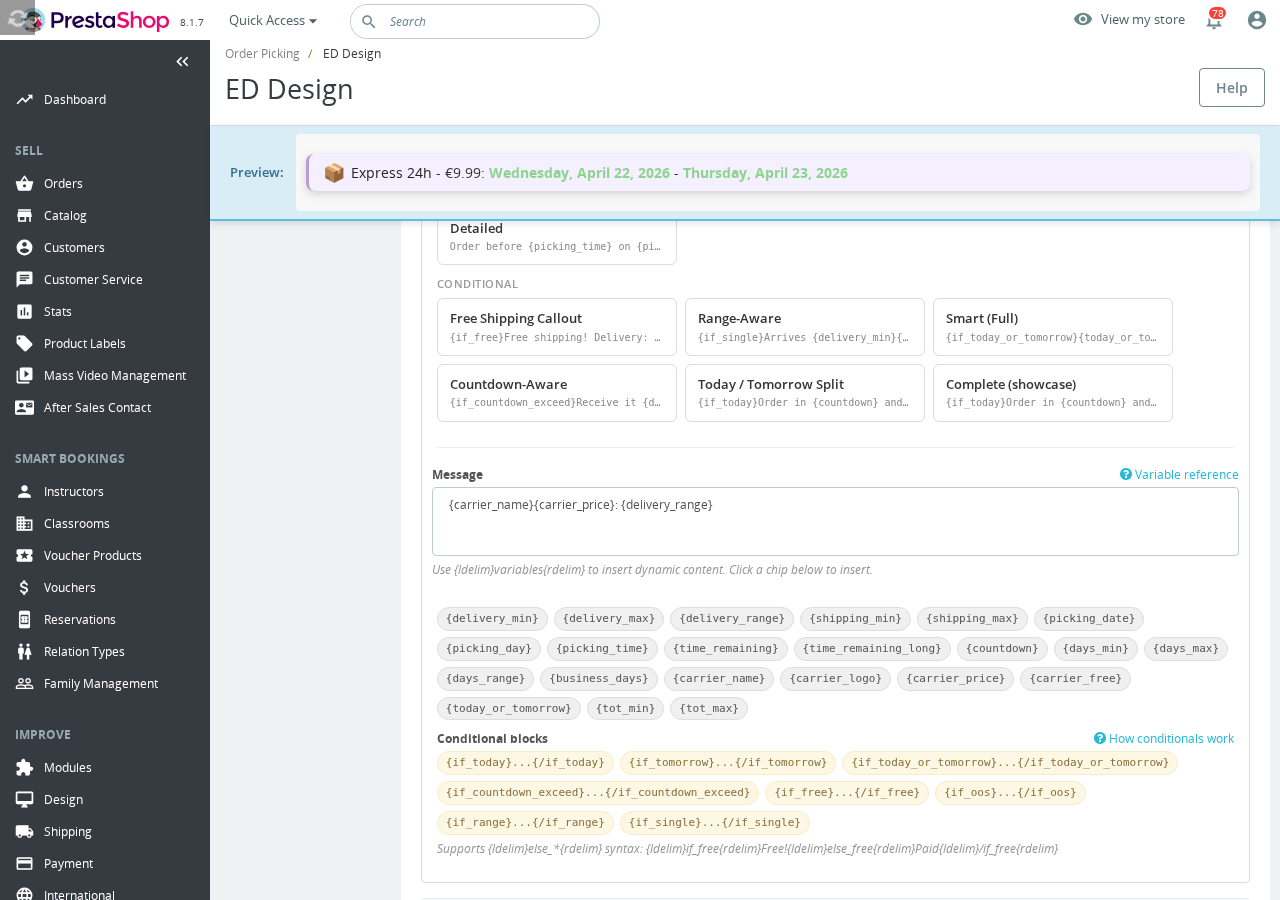
- Conditional — Free Shipping Callout, Range-Aware, Smart (Full), Countdown-Aware, Today/Tomorrow Split, Complete (showcase)
Click any template to load it into the editor, then modify it freely. The preview at the top of the page updates as you type.
Step 3: Customize with variables
The message editor supports a full set of variables. Type them directly or click the chip buttons below the editor to insert them.
Date variables
| Variable | What it shows |
|---|---|
{delivery_min} | The earliest delivery date, formatted for display (e.g. "Wednesday, Apr 23") |
{delivery_max} | The latest delivery date |
{delivery_range} | A range like "Apr 23 – Apr 27", or a single date when min and max are the same |
{shipping_min} | The earliest date the order ships |
{shipping_max} | The latest date the order ships |
{picking_date} | Today's date if before the order cutoff, otherwise tomorrow |
{picking_day} | The day name of the picking date (e.g. "Monday") |
Time and countdown variables
| Variable | What it shows |
|---|---|
{picking_time} | The order cutoff time (e.g. "14:00") |
{time_remaining} | Hours and minutes until the order cutoff |
{time_remaining_long} | The same, in a more verbose format |
{countdown} | A live ticking clock that counts down to the order cutoff |
The {countdown} variable renders as a <span> element that ticks in real time on the product page. Use it to create urgency around same-day or next-day delivery deadlines.
Days (numeric) variables
| Variable | What it shows |
|---|---|
{days_min} | Minimum delivery days as a plain number |
{days_max} | Maximum delivery days as a plain number |
{days_range} | "X – Y days" or "X days" when the range collapses to one value |
{business_days} | Minimum delivery days excluding weekends |
Carrier variables
| Variable | What it shows |
|---|---|
{carrier_name} | The carrier's name |
{carrier_logo} | The carrier's logo as an image tag |
{carrier_price} | The carrier's shipping price, formatted |
{carrier_free} | The price, or "Free" when free shipping is detected |
{carrier_free} checks three signals to decide whether delivery is free: the order's free-shipping flag, the carrier's free attribute, and whether the calculated price is zero. If any of those is true, it outputs "Free" instead of the price.
Smart shortcut variables
| Variable | What it shows |
|---|---|
{today_or_tomorrow} | "today" or "tomorrow" based on the earliest delivery date |
{tot_min} | "today", "tomorrow", or the formatted {delivery_min} date |
{tot_max} | "today", "tomorrow", or the formatted {delivery_max} date |
Conditional blocks
Conditionals let you show different text depending on what is true at render time. Wrap your content in {if_X}...{/if_X} — and add an optional {else_X} branch for the opposite case.
| Block | When the content is shown |
|---|---|
{if_today}...{/if_today} | The earliest delivery date is today |
{if_tomorrow}...{/if_tomorrow} | The earliest delivery date is tomorrow |
{if_today_or_tomorrow}...{/if_today_or_tomorrow} | The earliest delivery is today or tomorrow |
{if_countdown_exceed}...{/if_countdown_exceed} | There is still enough time before the order cutoff |
{if_free}...{/if_free} | Delivery is free |
{if_oos}...{/if_oos} | The product is out of stock |
{if_range}...{/if_range} | The earliest and latest delivery dates are different |
{if_single}...{/if_single} | The earliest and latest delivery dates are the same |
Here is a real-world example. This message says "Get it TODAY!" when delivery is today, and falls back to the formatted date otherwise:
{if_today}Get it TODAY!{else_today}Delivered {delivery_min}{/if_today}
Conditionals can be nested, so you can build quite sophisticated logic — but keep your template readable so you can maintain it later.
Practical examples
Awareness of whether it's a range or a single date:
{if_range}Delivered between {delivery_min} and {delivery_max}{/if_range}{if_single}Delivered on {delivery_min}{/if_single} via {carrier_name}
Countdown with a today/tomorrow fallback:
Order {if_countdown_exceed}in the next {time_remaining}{else_countdown_exceed}now{/if_countdown_exceed} and receive it {tot_min}.
Free shipping callout:
Estimated delivery: {delivery_range} — {if_free}Free shipping!{else_free}Shipping: {carrier_price}{/if_free}
Carrier highlight with urgency:
{carrier_name} · {if_today}Get it today if you order in {time_remaining}{else_today}Arrives {delivery_range}{/if_today}
Frequently Asked Questions
What is the difference between {carrier_price} and {carrier_free}?
{carrier_price} always shows the formatted shipping price, even when it's zero. {carrier_free} is smarter — it shows the price when shipping has a cost, but outputs 'Free' when the order qualifies for free shipping. Use {carrier_free} when you want to avoid writing an explicit {if_free} block.
How does the countdown work and when does it make sense to use it?
The {countdown} variable renders a live JavaScript clock that ticks down to your order cutoff time. It's most effective for stores that ship same-day if you order before a certain hour — it creates real urgency without being misleading. On pages that load after the cutoff has passed, the clock will show zero or be hidden by a {if_countdown_exceed} conditional.
Can I use HTML inside a custom message template?
Yes. The output is rendered as HTML on the product page, so inline elements like <strong>, <em>, and <span> work well. Avoid block-level elements like <div> or <p> inside the message, as they may disrupt your theme's widget layout.
Does the out-of-stock message support the same variables?
Yes. Every variable and conditional block available in the main custom message is also available in the out-of-stock message field. You can use {if_oos} inside a single combined template, or keep the two messages separate — whichever is easier to manage.
What happens if a variable has no value for a particular order — for example, if there's no carrier name?
Variables that cannot be resolved output an empty string. Your message will still display — minus that piece of information. Wrap important variables in a conditional if you want to hide an entire phrase when the data isn't available.